A 2026 cybersecurity report found that 1 in 4 travelers who connected to unsecured public WiFi experienced unauthorized account access within 72 hours of their trip. The scariest part? Most of them never knew it happened until they got home.
To safely use public WiFi while traveling in 2026, always connect through a reputable VPN, avoid accessing banking or passport apps on open networks, turn off auto-join WiFi settings, and verify network names with staff before connecting. Assume any unencrypted network is actively monitored by someone in the same room.
The Real Threat: What Hackers Actually Do on Public WiFi
Most travelers picture a lone hacker in a dark hoodie. The reality in 2026 is far more mundane and more dangerous: a cheap $35 device called a 'pineapple' can broadcast a fake 'Airport_Free_WiFi' network in any terminal and silently intercept every login, card number, and session cookie you transmit. This is called a man-in-the-middle (MITM) attack, and it works because your phone connects automatically and trustingly to the strongest matching signal. Evil twin attacks — where criminals clone a legitimate hotel or café network name exactly — increased 38% between 2024 and 2026 according to threat intelligence firm Surfshark. You won't see a warning, you won't feel a thing, and your banking credentials are already gone before you finish your espresso.
Step-by-Step: How to Connect Safely (The Non-Negotiable Checklist)
First, confirm the exact network name with a staff member — written down, not verbally, because names like 'CafeWifi' vs 'Cafe_Wifi' are indistinguishable when spoken aloud. Second, turn on your VPN before you tap Connect, not after — the window between connection and VPN activation is when attackers strike. Third, disable file sharing, AirDrop, and Bluetooth simultaneously; open sharing protocols are invitations. Fourth, use HTTPS-only mode in your browser (every major browser supports this natively in 2026) and never override certificate warnings — that 'Your connection is not private' red screen is not an inconvenience, it's a siren. Fifth, log out completely from every session rather than just closing the tab, particularly for email and banking apps.
VPNs in 2026: Which One Is Actually Worth It for Travelers
Not all VPNs are equal, and a free VPN is frequently worse than no VPN at all — several free providers were caught in 2025 selling user traffic data to ad brokers. For travel in 2026, the two most trusted paid options are NordVPN (approximately $4.49/month on a 2-year plan, strong in Europe and Southeast Asia) and ExpressVPN (approximately $6.67/month, faster speeds but pricier). Mullvad is the gold standard for privacy purists at a flat €5/month with no account required, but its app is less beginner-friendly. The honest trade-off: a VPN adds 10–30ms latency, which matters for video calls but is irrelevant for browsing and banking. Buy your subscription before you leave home — some countries block VPN download sites entirely, and you don't want to discover that in a Bangkok airport.
Your Phone Is Not the Only Vulnerability: Physical Document Theft Happens Simultaneously
Here's what the cybersecurity guides leave out: while you're distracted plugging into a sketchy USB charging port or fumbling with a VPN app, a physical pickpocket or RFID skimmer is working the same crowded airport or café. Modern RFID skimmers can read contactless card data and e-passport chip data from up to 10 centimeters away — no contact required, no beep, no warning. The digital threat and the physical threat almost always share the same hunting ground: busy, distracted, connected travelers. Protecting yourself means addressing both layers simultaneously, which is why pairing a solid VPN habit with an RFID-blocking wallet or neck wallet is the only complete answer. Think of it as a two-factor defense for your real-world identity.
Offline Habits That Eliminate 90% of the Risk
The single most underrated travel security move in 2026 is doing your sensitive work offline or on mobile data, and treating public WiFi as read-only for low-stakes browsing like maps and menus. Activate your home carrier's international data roaming plan or buy a local eSIM (Airalo sells destination eSIMs starting at around $5 for 1GB) — your carrier's encrypted 5G connection is orders of magnitude safer than any hotel WiFi. Pre-download maps, translation packs, and boarding passes before you leave the hotel so you're not forced into risky connections when you're rushing. If you must use a public network, do it from a dedicated travel browser profile with no saved passwords and no active sessions. Treat public WiFi like a public restroom: use it when you have to, wash your hands thoroughly afterward.
Honest Comparison: VPN-Only vs. VPN + Physical RFID Protection
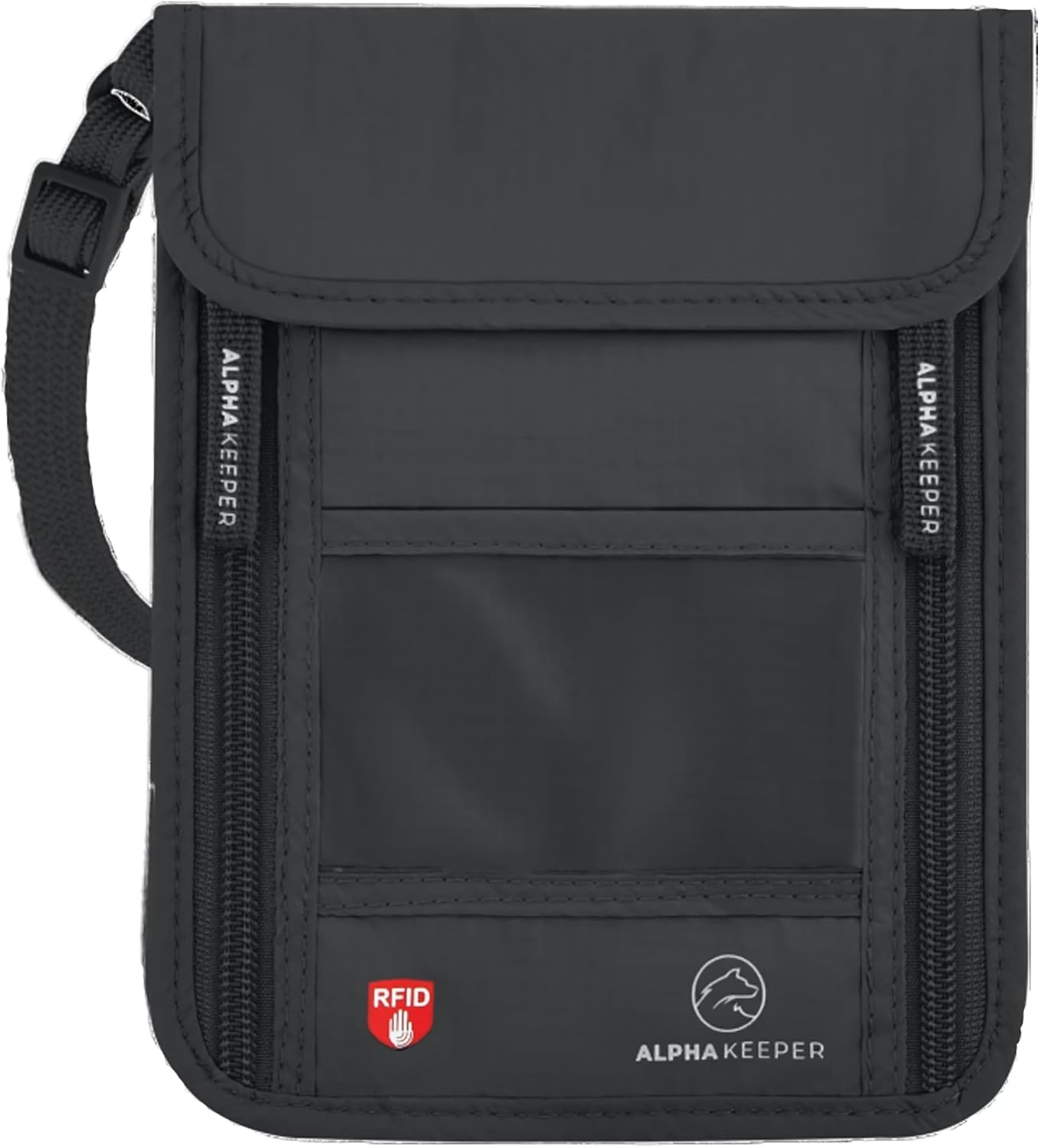
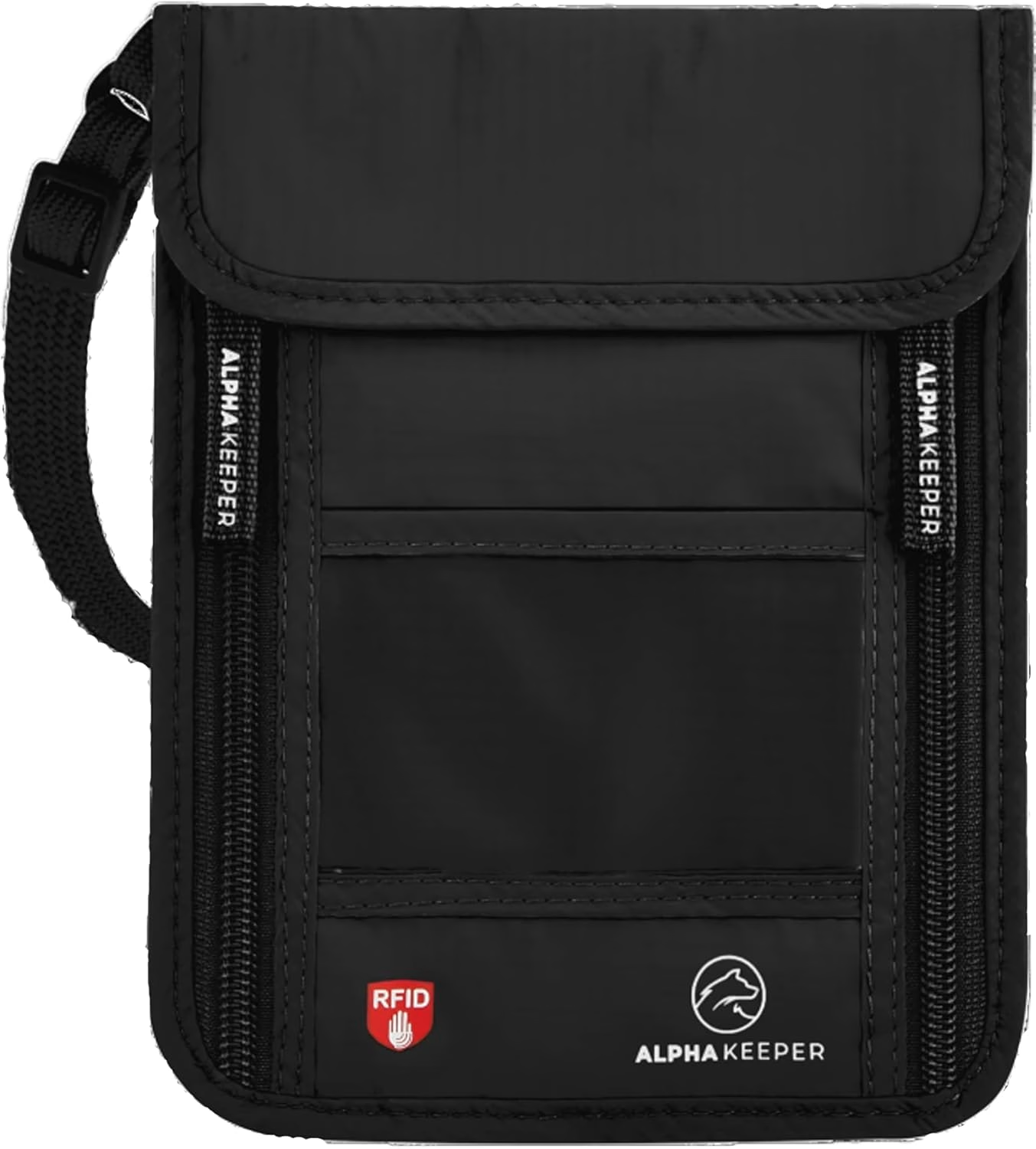
Travelers who only run a VPN protect their data in transit but leave their physical cards and passport chip completely exposed in crowded networks of a different kind — train stations, market crowds, airport queues. A VPN encrypts the signal from your phone to the server; it does absolutely nothing if someone skims the RFID chip in your jacket pocket. Running both a reliable VPN and carrying your cards in an RFID-blocking sleeve or a neck wallet like the Black RFID Neck Wallet closes both attack surfaces for under $30 total combined investment. That is not a marketing upsell — it is the mathematically complete solution, because digital and physical theft happen in the same places at the same time.
Frequently Asked Questions
Is it safe to use hotel WiFi for banking while traveling in 2026?
No — hotel WiFi should never be used for banking or accessing passport-linked accounts without an active VPN. Hotel networks are shared among dozens or hundreds of guests, are rarely enterprise-grade secured, and are a documented target for evil twin and MITM attacks. Use mobile data or a trusted VPN for any financial transaction.
Does an RFID-blocking wallet protect against WiFi hacking?
An RFID-blocking wallet protects your physical credit cards and e-passport chip from contactless electronic skimming — a completely separate threat from WiFi hacking. They solve different attack vectors that often occur in the same high-risk environments. For full travel security in 2026, you need both a VPN for digital connections and RFID-blocking protection for your physical documents and cards.
What is the safest way to use public WiFi when a VPN is blocked?
If your VPN is blocked (common in China, UAE, and Russia), switch to your mobile carrier's data connection or a local eSIM entirely. If that is impossible, limit activity strictly to non-sensitive browsing, use HTTPS-only mode, avoid all logins, and pre-authenticate any critical accounts before you arrive in the country. Never access banking or government ID portals on a blocked-VPN network.
Ready to upgrade?
Your cards and passport are being scanned in the same crowded airports where you're connecting to sketchy WiFi — close both gaps at once. Pair your VPN with the Black RFID Neck Wallet from Alpha Keeper and travel knowing your digital and physical identity are locked down tight.