In 2026, the average international traveler carries over $3,000 worth of data-linked financial access in their pocket — and most of it can be skimmed, intercepted, or stolen without anyone touching them. The airport lounge isn't your biggest threat. Your back pocket is.
To protect your data while traveling in 2026, layer your defenses: use a no-log VPN on every network, switch to an eSIM with a local data plan, enable two-factor authentication before departure, and carry RFID-blocking sleeves or a money belt to stop contactless card skimming at the physical level.
The Real Threat Map: It's Not Just the Coffee Shop WiFi
Public WiFi gets all the headlines, but in 2026 the threat landscape has expanded dramatically. Evil twin attacks — where a rogue hotspot mimics a hotel's legitimate network — are now automated and deployable from a device the size of a deck of cards. Bluetooth sniffing in crowded transit hubs can harvest device identifiers and, in some cases, session tokens. And contactless card skimmers embedded in turnstiles and payment terminals across Southeast Asia, Eastern Europe, and South America have grown sophisticated enough to capture card data through denim. The honest threat map looks like this: 40% of travel-related fraud in 2026 originates from physical proximity attacks, not network-level hacks. That means your digital defenses need a physical counterpart.
VPNs in 2026: What Actually Works (and What's Marketing Noise)
A VPN is non-negotiable for travel, but not all VPNs are equal and the gap has widened. Choose a provider with a verified no-log policy — audited by a third party in 2025 or 2026, not self-declared — WireGuard protocol support for speed, and servers in your home country for banking apps that flag foreign IPs. Avoid free VPNs entirely; multiple free providers were found in 2025 selling session metadata to data brokers. The honest trade-off: a premium VPN costs $3–$8/month and adds 10–30ms latency on most connections, which is imperceptible for browsing but noticeable on video calls. Pay for it. Turn it on before you connect to any network, including hotel ethernet — those are compromised more often than travelers expect.
eSIM Strategy: The Traveler's Best Data Security Upgrade of 2026
Switching to a local eSIM data plan is one of the highest-ROI security moves a traveler can make. When you use a local carrier's cellular data instead of hotel WiFi, you bypass the entire public-network attack surface — no shared router, no evil twin risk, no session hijacking. In 2026, eSIM coverage spans 190+ countries, and a regional data plan for Europe or Southeast Asia typically costs $15–$30 for two weeks. Your phone's built-in eSIM means you carry no physical SIM to lose or have cloned. Pair it with your VPN and you've eliminated the two most common network-level attack vectors in a single move that also saves you from roaming charges.
RFID Skimming Is Still Very Real — Here's the Physical Layer Fix
Contactless payment cards and e-passports broadcast on 13.56 MHz and, in optimal conditions, can be read from up to 10 cm without your knowledge. Crowded metros, airport security lines, and tourist markets are prime skimming environments — not because they're lawless, but because they're dense. RFID-blocking sleeves work by creating a Faraday cage around your card, blocking the radio frequency entirely. The Alpha Keeper Fiber RFID Sleeve Set uses multi-layer metallic fiber construction that independently tested to block 13.56 MHz signals at 100% — no partial shielding, no marketing asterisks. Slip your credit cards and passport card into sleeves before you leave home; you'll never think about it again, and neither will the skimmer who bumped into you on the Barcelona metro.
The Physical Carry System: Where You Keep It Matters as Much as What Protects It
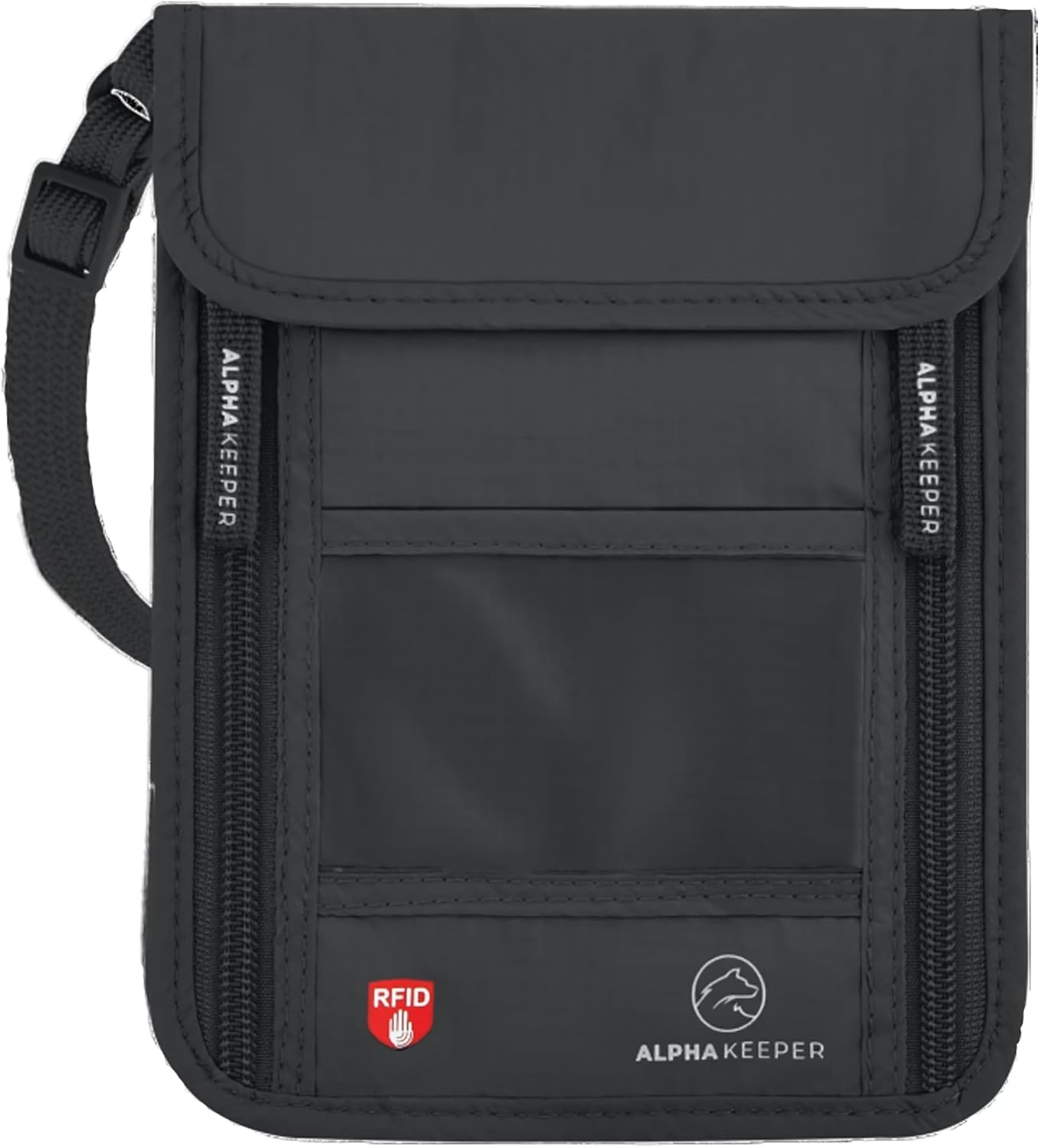
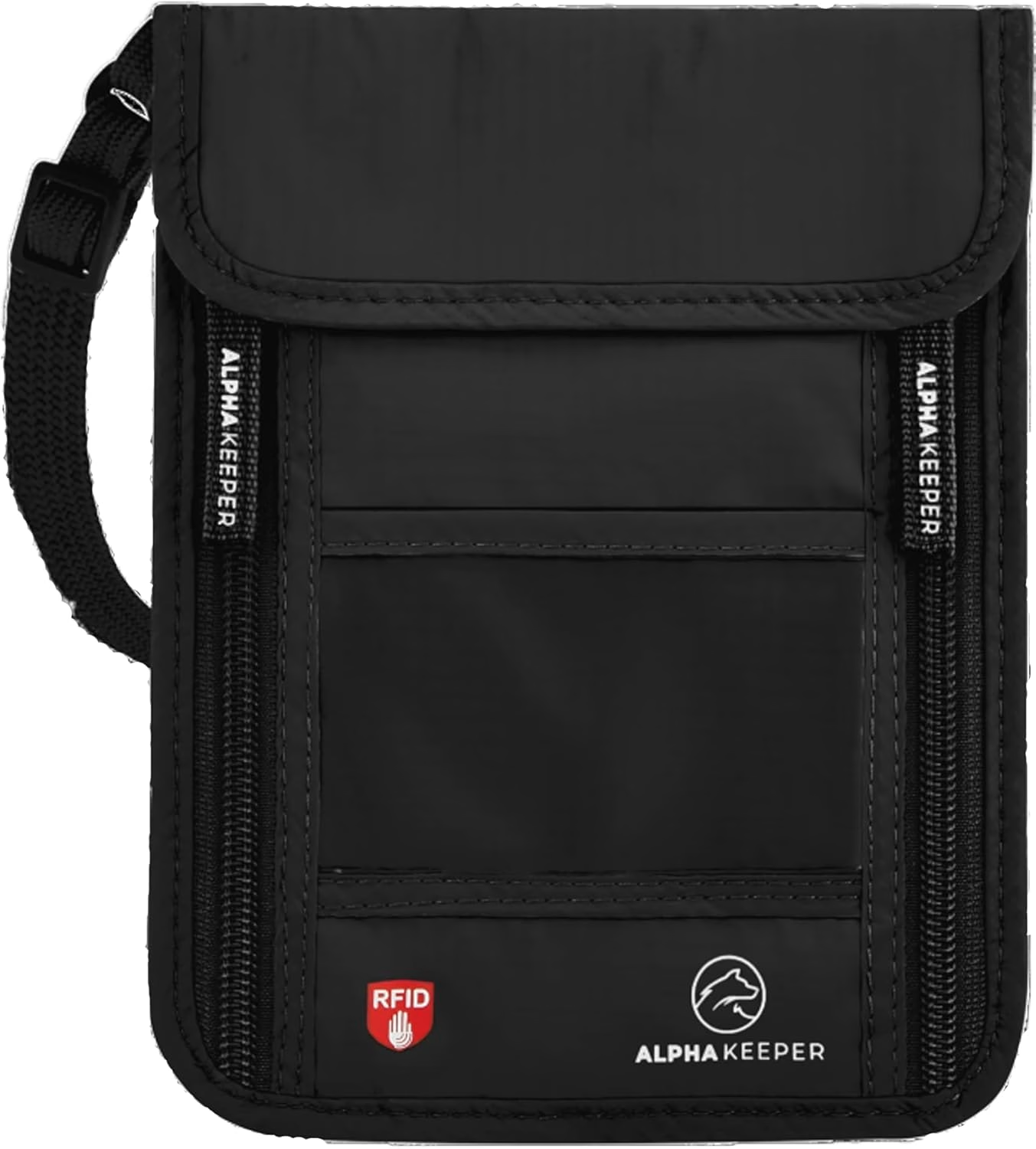
Digital security fails the moment a pickpocket lifts your phone or card wallet. In 2026, organized pickpocket rings in major tourist cities have grown more sophisticated — distraction, blocking, and contact techniques that can clean a front pocket in under two seconds. A hidden carry system removes you from the target pool entirely. The Black RFID Travel Money Belt | Hidden Travel Gear from Alpha Keeper sits flat against your abdomen under a shirt, holds cards, cash, and a passport, and combines the physical security of a hidden carry with active RFID blocking — so you're defended against both the hand in your pocket and the scanner in someone's bag. For lighter carry days, the Dark Grey RFID Neck Wallet keeps essentials under your clothing on an adjustable cord, completely invisible under a t-shirt.
Pre-Trip Digital Hygiene: The 30-Minute Checklist That Prevents 80% of Problems
Most travel data breaches are preventable with prep done at home, before you ever reach the airport. Enable two-factor authentication on every financial account and email — use an authenticator app, not SMS, because SIM-swap fraud spiked again in 2025. Download your VPN app and test it. Set banking apps to require biometric confirmation for every transaction. Back up your phone to encrypted cloud storage. Remove saved passwords from your browser and use a password manager with a strong master password instead. Finally, photograph your passport, cards, and travel docs and store them in encrypted cloud storage — if your wallet is stolen, recovery time drops from days to hours.
Honest Comparison: RFID Money Belt vs. Regular Travel Wallet
A standard travel wallet — even a slim, attractive one — offers zero protection against contactless skimming and nothing against a pickpocket beyond friction. An RFID-blocking money belt like the Azure RFID Money Belt changes the physics of the situation: your cards are unreadable to any scanner, your carry position is hidden under clothing, and a thief would need to physically reach under your shirt to access anything. The trade-off is slight bulk under tight clothing and a few extra seconds at payment terminals when you need to retrieve a card. For most travelers, that inconvenience is trivially small against the alternative of a fraudulent transaction appearing on your card at 2am in a country where your bank's fraud line puts you on hold for forty minutes.
Frequently Asked Questions
Does RFID blocking actually work, or is it just a travel gadget gimmick?
It works — with caveats. RFID-blocking sleeves and wallets with genuine metallic Faraday cage construction block 13.56 MHz signals used by contactless cards and e-passports. Independent lab tests confirm 100% signal blocking for quality products like the Fiber RFID Sleeve Set. Cheap polyester wallets marketed as 'RFID blocking' often have negligible shielding. The skimming threat is real and documented in high-tourism cities; the protection is real when you buy from a brand that tests their materials.
Is a VPN enough to keep my data safe on hotel WiFi in 2026?
A VPN is necessary but not sufficient on its own. It encrypts your traffic so network sniffers can't read it, but it doesn't protect you if your device is already compromised, if you approve a fake security certificate, or if you're physically pickpocketed. Layer your VPN with an eSIM local data plan (to avoid public WiFi entirely where possible), two-factor authentication on accounts, and physical RFID protection for your cards. Security in travel is always about layers, not a single solution.
What's the best way to carry a passport securely while traveling in 2026?
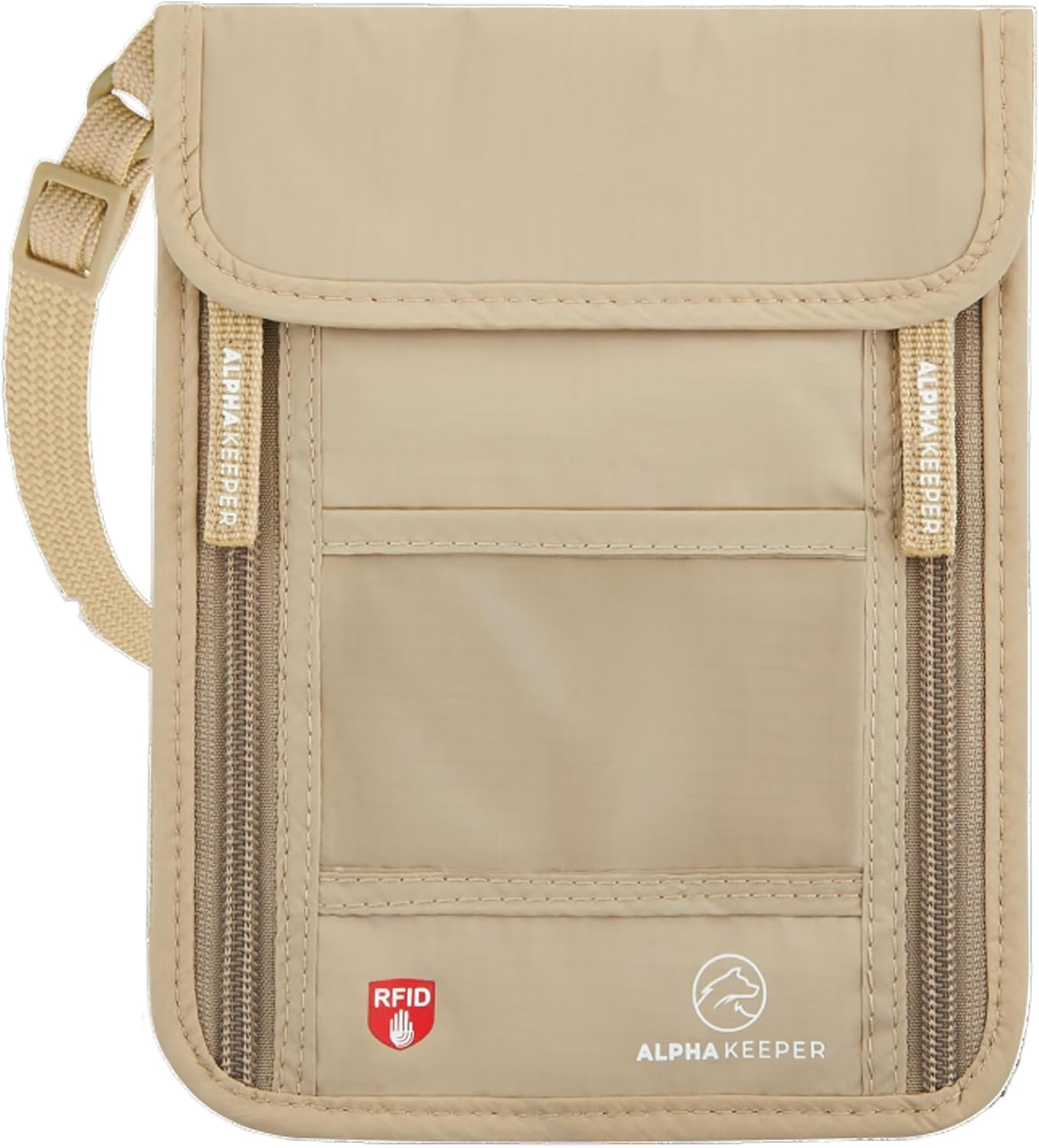
The safest carry combines physical concealment with RFID blocking. A neck wallet worn under clothing — like the Black RFID Neck Wallet or the Beige RFID Neck Wallet — keeps your passport against your body and undetectable to both pickpockets and contactless scanners. Leave your physical passport in hotel safe storage when possible and carry a photographed copy in encrypted cloud storage for daily use. For card-only days, RFID sleeve sets like the Colorful RFID Sleeve Set keep individual cards blocked inside any bag or pocket.
Ready to upgrade?
Stop leaving your financial data exposed to the scanner in the next person's bag — grab the Black RFID Travel Money Belt | Hidden Travel Gear from Alpha Keeper and carry everything that matters in a place no hand or antenna can reach.