Every 30 minutes, a traveler somewhere in the world loses their passport or has it stolen — and the ones who recover fastest all share one thing: they made a proper backup before they left home. Most people don't. Here's exactly how to do it right.
To make a passport copy, photograph the photo page in strong natural light, save it to a password-protected cloud folder AND email it to yourself, then print two color copies on plain paper. Store one copy separate from your passport and leave one at home with a trusted contact. Total setup time: under 10 minutes.
Why a Single Photocopy Tucked in Your Bag Isn't Enough Anymore
A paper photocopy shoved in the same bag as your actual passport fails at the one job it has: being somewhere else when your passport goes missing. In 2026, embassy officials in high-theft destinations like Rome, Barcelona, and Bangkok consistently report that travelers who recover quickest have at least three backup layers — one digital, one physical carried separately, one left with someone at home. A faded black-and-white copy also raises flags; embassies and airlines now prefer color reproductions that show the biometric chip symbol, your photo in full color, and the passport number clearly. Think of your backup strategy as a redundancy system, not a single file.
Step-by-Step: How to Make a High-Quality Passport Copy (Digital)
Lay your passport flat on a white surface, use a window for natural light (no shadows, no flash glare), and shoot with your smartphone in portrait mode — the result will be sharper than most flatbed scanners produce. Save the image as a JPEG and a PDF to a password-protected folder in at least two cloud services: Google Drive and iCloud work, but a dedicated secure app like 1Password or Bitwarden is better because the files are encrypted at rest. Email the PDF to yourself AND to one trusted person at home with the subject line 'PASSPORT BACKUP — [Your Name]' so it's searchable in seconds from any device. Also upload a copy to the official government portal if your country offers one — the U.S. Smart Traveler Enrollment Program (STEP) and the UK's FCDO both accept digital document uploads as of 2026.
Step-by-Step: How to Make a Physical Passport Copy That Actually Works
Print two color copies at full size (the passport page is 125mm × 88mm; print it actual size, not scaled) on plain white paper — a color laser print holds up better than inkjet if it gets damp in a bag. Write your emergency contact number and local embassy phone number directly on the copy in blue pen, because that information is useless when it's only saved in the phone that just got swiped along with your bag. Keep one physical copy in a completely different location from your real passport — ideally in a hidden neck wallet worn under your shirt, or locked in your hotel safe, never in the same daypack. Laminating the copy adds durability for longer trips but is not required; most consulates accept a clean, unlaminated print.
Where to Store Your Passport and Copies While Traveling
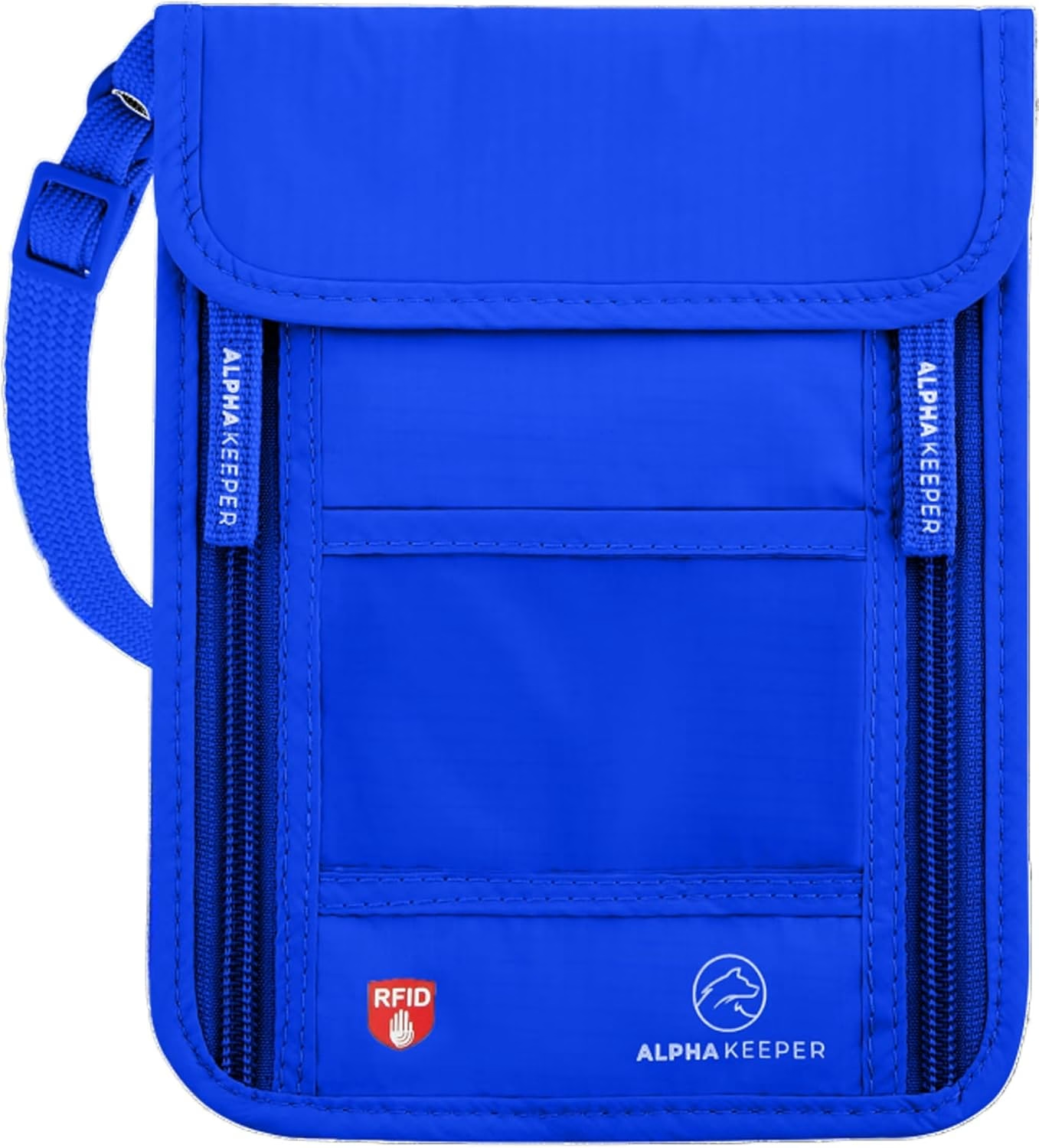
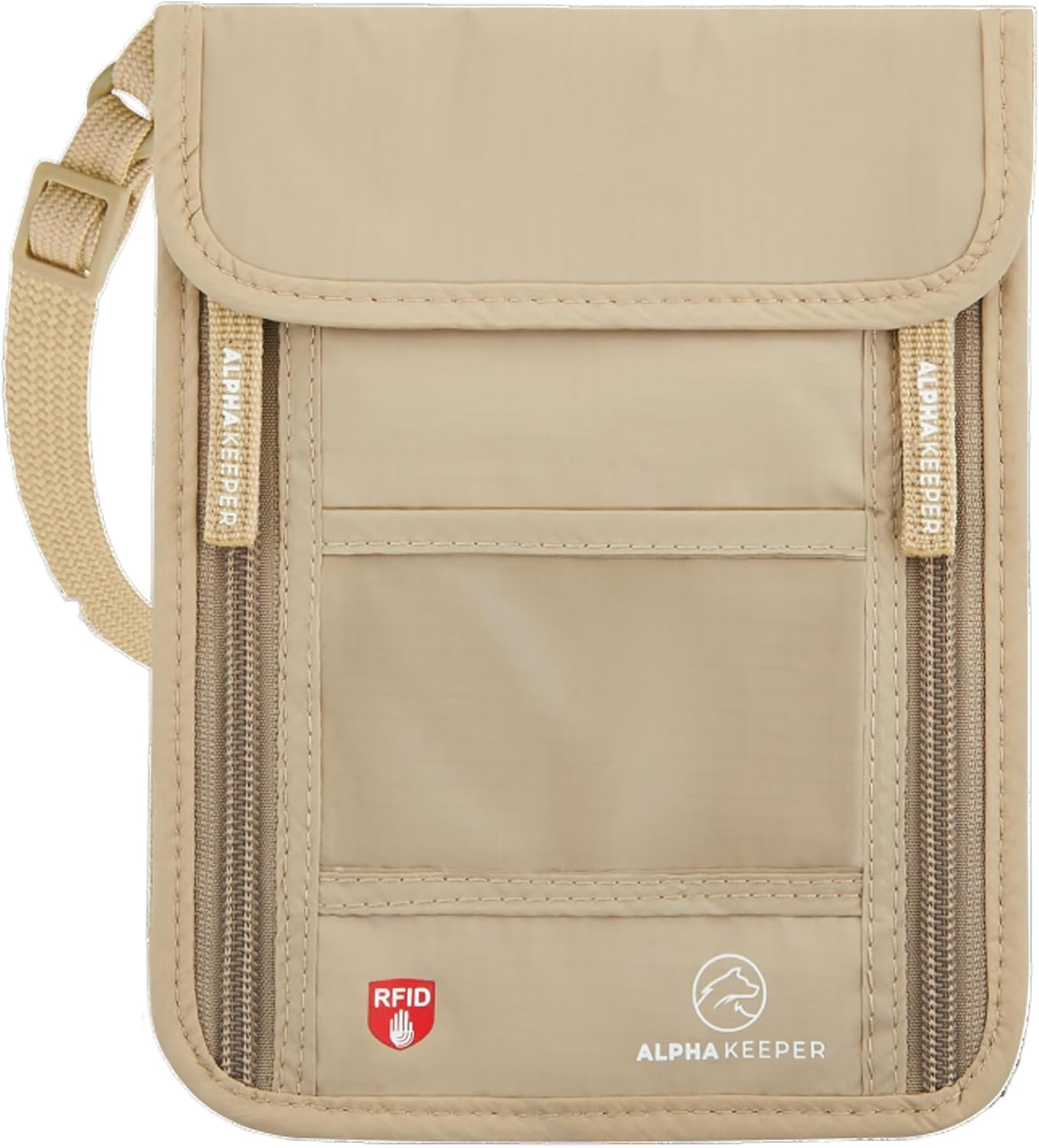
Your actual passport should almost never leave your accommodation once you've checked in — a certified color copy satisfies ID checks at museums, car rental desks, and most hotels in Europe, Asia, and Latin America. The real document lives best in an RFID-blocking neck wallet worn against your skin during transit: the Azure RFID Neck Wallet from Alpha Keeper, for example, has a dedicated passport sleeve plus card slots and sits flat under a t-shirt. For day trips in high-pickpocket zones, your physical backup copy rides in a separate pocket or money belt — the Black RFID Travel Money Belt | Hidden Travel Gear straps under clothing and gives you a second secure zone completely independent of your bag. Never store your passport copy in the same physical layer as your passport; separation is the entire point.
Digital Backup: Cloud vs. Offline Storage — An Honest Comparison
Cloud storage wins on accessibility — you can pull up your passport scan from a Bangkok police station on a borrowed phone in 90 seconds — but it requires internet access and a password you can actually remember under stress. Offline storage (an encrypted USB drive in your checked luggage, or a photo saved directly to your phone's camera roll) works without signal but is vulnerable if that device is also stolen. The smartest 2026 approach is cloud-primary with offline-secondary: store encrypted copies in two cloud services AND save one photo to a secondary device like a cheap travel phone or smartwatch. Avoid storing an unencrypted copy in standard phone photos — if your phone is unlocked by a thief, your full passport data is exposed.
The RFID Threat Your Passport Copy Can't Protect Against
Since 2007, all U.S., EU, UK, Canadian, and Australian passports contain a biometric RFID chip — and that chip can be scanned wirelessly by anyone with a reader within roughly 10 centimeters. A photocopy of your passport protects your identity if the document is lost; it does nothing to block live electronic skimming of the chip data from a passport sitting in an open bag. RFID-blocking sleeves interrupt the chip's radio frequency entirely: Alpha Keeper's Fiber RFID Sleeve Set uses a multi-layer metallic fiber construction that blocks 13.56 MHz RFID signals (the frequency used in all modern e-passports) without adding meaningful bulk. Pairing a good passport copy strategy with physical RFID protection covers both the analog theft risk and the electronic one — they solve different problems and you need both.
Frequently Asked Questions
Is a passport copy legally accepted as ID abroad?
In most countries, a certified color copy is accepted for low-stakes ID checks — hotel check-in, museum entry, car rental — but not for border crossings or flights. Always carry the original for air travel. If your passport is stolen, a copy dramatically speeds up the emergency replacement process at your embassy, which is its primary value.
How many passport copies should I make before traveling?
Make at least three: one digital copy stored in two separate cloud services, one physical copy kept separately from your real passport (in a neck wallet or money belt), and one physical copy left with a trusted contact at home. For trips longer than two weeks or to regions with high document-theft rates, add a fourth encrypted copy on a secondary device.
Should I carry my real passport or a copy when sightseeing?
Carry a color copy for sightseeing and leave the original locked in your hotel safe or secured in an RFID-blocking neck wallet at your accommodation. The exception is border crossings, flights, and situations where local law explicitly requires the original — always check country-specific entry requirements before departure.
Ready to upgrade?
Before your next trip, pair your passport copy strategy with physical protection: the Azure RFID Neck Wallet keeps your actual passport against your body in an RFID-blocked sleeve, so even if you're in the most pickpocket-dense piazza in Europe, the original stays exactly where you put it.